Explore your free benefits and unlimited rewards
All with no annual fee.


All with no annual fee.

Social Security Number Alerts
Get an alert if we find your Social Security Number on the dark web, and we'll monitor your credit report and notify you if anyone pulls your credit or opens a new account. Activate for free.1
Discover it® Cash Back
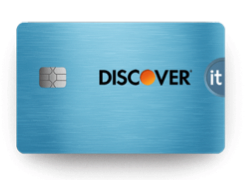

Earn 5% Cash back
on everyday purchases at different places you shop each quarter, up to the quarterly maximum when you activate.

Plus, earn unlimited 1% cash back on all other purchases — automatically.
Discover it® Gas and Restaurants
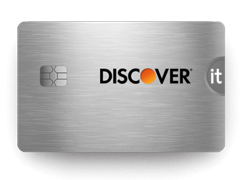

Earn 2% Cashback Bonus®
At Gas Stations and Restaurants on up to $1,000 in combined purchases each quarter, automatically.4
Plus earn unlimited 1% cash back on all other purchases.
Discover it® Travel Miles
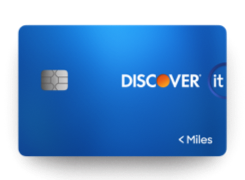

Earn unlimited 1.5x Miles
Automatically earn unlimited 1.5x Miles on every dollar of every purchase5

Message an agent to get your questions answered.

With the Discover mobile app, it’s easier than ever to manage your account anywhere, anytime.

You can talk to a human on the Discover customer service team anytime.7
There's no excuse for a boring card design.
Choose one that’s all you.
Cash Back Credit Cards
Intro purchase APR is % for months from date of account opening then the standard purchase APR applies. Intro Balance Transfer APR is % for months from date of first transfer, for transfers under this offer that post to your account by then the standard purchase APR applies. Standard purchase APR: % variable to % variable, based on your creditworthiness. Cash APR: % variable. Variable APRs will vary with the market based on the Prime Rate. Minimum interest charge: If you are charged interest, the charge will be no less than $.50. Cash advance fee: Either $10 or 5% of the amount of each cash advance, whichever is greater. Balance transfer fee: % Intro fee on balances transferred by and up to % fee for future balance transfers will apply. Annual Fee: None. Rates as of . We will apply payments at our discretion, including in a manner most favorable or convenient for us. Each billing period, we will generally apply amounts you pay that exceed the Minimum Payment Due to balances with higher APRs before balances with lower APRs as of the date we credit your payment.
Travel Credit Card
Intro purchase APR is % for months from date of account opening then the standard purchase APR applies. Intro Balance Transfer APR is % for months from date of first transfer, for transfers under this offer that post to your account by then the standard purchase APR applies. Standard purchase APR: % variable to % variable, based on your creditworthiness. Cash APR: % variable. Variable APRs will vary with the market based on the Prime Rate. Minimum interest charge: If you are charged interest, the charge will be no less than $.50. Cash advance fee: Either $10 or 5% of the amount of each cash advance, whichever is greater. Balance transfer fee: % Intro fee on balances transferred by and up to % fee for future balance transfers will apply. Annual Fee: None. Rates as of . We will apply payments at our discretion, including in a manner most favorable or convenient for us. Each billing period, we will generally apply amounts you pay that exceed the Minimum Payment Due to balances with higher APRs before balances with lower APRs as of the date we credit your payment.
Student Credit Cards
Intro purchase APR is % for months from date of account opening then the standard purchase APR applies. Intro Balance Transfer APR is % for months from date of first transfer, for transfers under this offer that post to your account by then the standard purchase APR applies. Standard purchase APR: % - % variable, based on your creditworthiness. Cash APR: % variable. Variable APRs will vary with the market based on the Prime Rate. Minimum interest charge: If you are charged interest, the charge will be no less than $.50. Cash advance fee: Either $10 or 5% of the amount of each cash advance, whichever is greater. Balance transfer fee: % Intro fee on balances transferred by and up to % fee for future balance transfers will apply. Annual Fee: None. Rates as of . We will apply payments at our discretion, including in a manner most favorable or convenient for us. Each billing period, we will generally apply amounts you pay that exceed the Minimum Payment Due to balances with higher APRs before balances with lower APRs as of the date we credit your payment.
Secured Credit Card
% standard variable purchase APR. Intro Balance Transfer APR is % for months from date of first transfer, for transfers under this offer that post to your account by then the standard purchase APR applies. Cash APR: % variable. Variable APRs will vary with the market based on the Prime Rate. Minimum interest charge: If you are charged interest, the charge will be no less than $.50. Cash advance fee: Either $10 or 5% of the amount of each cash advance, whichever is greater. Balance transfer fee: % Intro fee on balances transferred by and up to % fee for future balance transfers will apply. Annual Fee: None. Rates as of . We will apply payments at our discretion, including in a manner most favorable or convenient for us. Each billing period, we will generally apply amounts you pay that exceed the Minimum Payment Due to balances with higher APRs before balances with lower APRs as of the date we credit your payment.
Discover Bank recently merged into Capital One, N.A. As the companies come together and we work to deliver a common digital experience, content on this page may not apply to some Discover cards. Specifically, if your card is eligible to be managed through the Capital One-branded mobile banking app or website, please login for the benefits and features that apply to your card. If you have questions, please call the number on the back of your card.
1. Social Security Number Alerts: Discover® Identity Alerts (Alerts) currently provide: (a) daily monitoring of your Experian® credit report and an alert when a new inquiry or account is listed on your report; (b) daily monitoring of the dark web known for revealing personal information and an alert if your Social Security number is found. Alerts are offered by Discover, a division of Capital One, N.A., (Discover) at no cost, are available only online, and do not impact your credit score. Alerts are only provided to, Primary cardmembers that agree to receive them online and whose accounts are open, in good standing, have a Social Security Number, and an email address on file. This benefit may change or end in the future. Discover is not a credit repair organization as defined under federal or state law, including the Credit Repair Organizations Act.
2. $0 Fraud Liability: An “unauthorized purchase” is a purchase where you have not given access to your card information to another person or a merchant for one-time or repeated charges. Please use reasonable care to protect your card and do not share it with employees, relatives, or friends. Learn more at Discover.com/fraudFAQ.
3. Freeze your card: When you freeze your account, Discover will not authorize new purchases, cash advances or balance transfers (including checks). However, some activity may continue including merchant initiated or merchant-indicated recurring transactions, as well as returns, credits, dispute adjustments, payments, Discover protection product fees, other account fees, interest, rewards redemptions and certain other exempted transactions.
4. 2% Cashback: You earn a full 2% Cashback Bonus® on your first $1000 in combined purchases at Gas Stations (stand-alone) and Restaurants each calendar quarter. Calendar quarters begin January 1, April 1, July 1, and October 1. Purchases at Gas Stations and Restaurants over the quarterly cap, and all other purchases, earn 1% cash back. Gas Station purchases include those made at merchants classified as places that sell automotive gasoline that can be bought at the pump or inside the station. EV Charging Station purchases made at public electric vehicle charging stations are also included. Gas Stations and EV Charging Stations affiliated with supermarkets, supercenters, and wholesale clubs may not be eligible. Certain parking garages where public electric vehicle charging is offered or included may not be eligible. Restaurant purchases include those made at merchants classified as full-service restaurants, cafes, cafeterias, fast-food locations, caterers, and restaurant delivery services. Restaurants located inside of or affiliated with another business, such as hotels or retail stores and establishments classified as a bakery, may not qualify. Purchases must be made with merchants in the U.S. To qualify for 2%, the purchase transaction date must be before or on the last day of the offer or promotion. For online purchases, the transaction date from the merchant may be the date when the item ships. Rewards are added to your account within two billing periods. Even if a purchase appears to fit in a 2% category, the merchant may not have a merchant category code (MCC) in that category. Merchants and payment processors are assigned an MCC based on their typical products and services. Discover Card does not assign MCCs to merchants. Certain third-party payment accounts and digital wallet transactions may not earn 2% if the technology does not provide sufficient transaction details or a qualifying MCC. Learn more at Discover.com/digitalwallets. See Cashback Bonus Program Terms and Conditions for more information.
5. Earn 1.5x Miles: Each Mile is equal to $0.01. Miles cannot be redeemed directly with a specific airline carrier. See Terms and Conditions for more information.
6. If your account is closed, we will send you a check or credit your account with your rewards balance; we reserve the right to determine the method to disburse your rewards balance. You may be unable to redeem rewards in some limited situations such as when you choose to use an electronic funds transfer to redeem rewards to a new (unverified) deposit account. Rewards redeemed for gift cards require a minimum amount to redeem.
7. Service: You can reach a live agent anytime by calling 1-800-Discover (1-800-347-2683). Certain specialized customer service agents may not be available 24/7.
8. FICO® Credit Score Terms: Your FICO® Credit Score, key factors and other credit information are based on data from TransUnion® and may be different from other credit scores and other credit information provided by different bureaus. This information is intended for and only provided to Primary account holders who have an available score. Your score, key factors and other credit information are available on Discover.com and cardmembers are also provided a score on statements. Customers will see up to a year of recent scores online. Discover and other lenders may use different inputs, such as FICO® Credit Scores, other credit scores and more information in credit decisions. This benefit may change or end in the future. FICO is a registered trademark of Fair Isaac Corporation in the United States and other countries.
9. You can use the tap to pay feature with your contactless card anywhere your Discover credit card is accepted, and you see the contactless symbol at checkout. Not all merchants accept contactless payments.
10. Click to Pay: The Click to Pay icon, consisting of a pentagon design oriented on its side with a stylized depiction of a fast forward symbol on the right, formed by a continuous line, is a trademark owned by and used with permission of EMVCo, LLC.
EMV® is a registered trademark in the U.S. and other countries and an unregistered trademark elsewhere. The EMV trademark is owned by EMVCo, LLC.
11. Digital Wallet: Purchases include some online purchases and some in-store purchases made with your smartphone, tablet, or wearable. Purchases made with Google Pay include only those made by tapping your mobile device in-store. Certain third-party payment accounts and digital wallet transactions may be identified as being through a digital wallet. Discover does not determine the transaction details it receives for purchases.
For a list of compatible Apple Pay devices, see https://support.apple.com/en-us/HT208531. Apple, the Apple logo, Apple Pay, Apple Watch, iPad, iPhone, Mac are trademarks of Apple Inc., registered in the U.S. and other countries.
Apple Pay is a service provided by Apple Payments Services LLC, a subsidiary of Apple Inc. Neither Apple Inc. nor Apple Payments Services LLC is a bank. Any card used in Apple Pay is offered by the card issuer.
Google Pay, Google Wallet, Google Play and the Google Play logo are trademarks of Google LLC.
Samsung Pay is a trademark of Samsung Electronics Co., Ltd. Use only in accordance with law. Samsung Pay is available on select Samsung devices.


